Junctions: Guides That Meet
Mode: Object Mode, in Draw
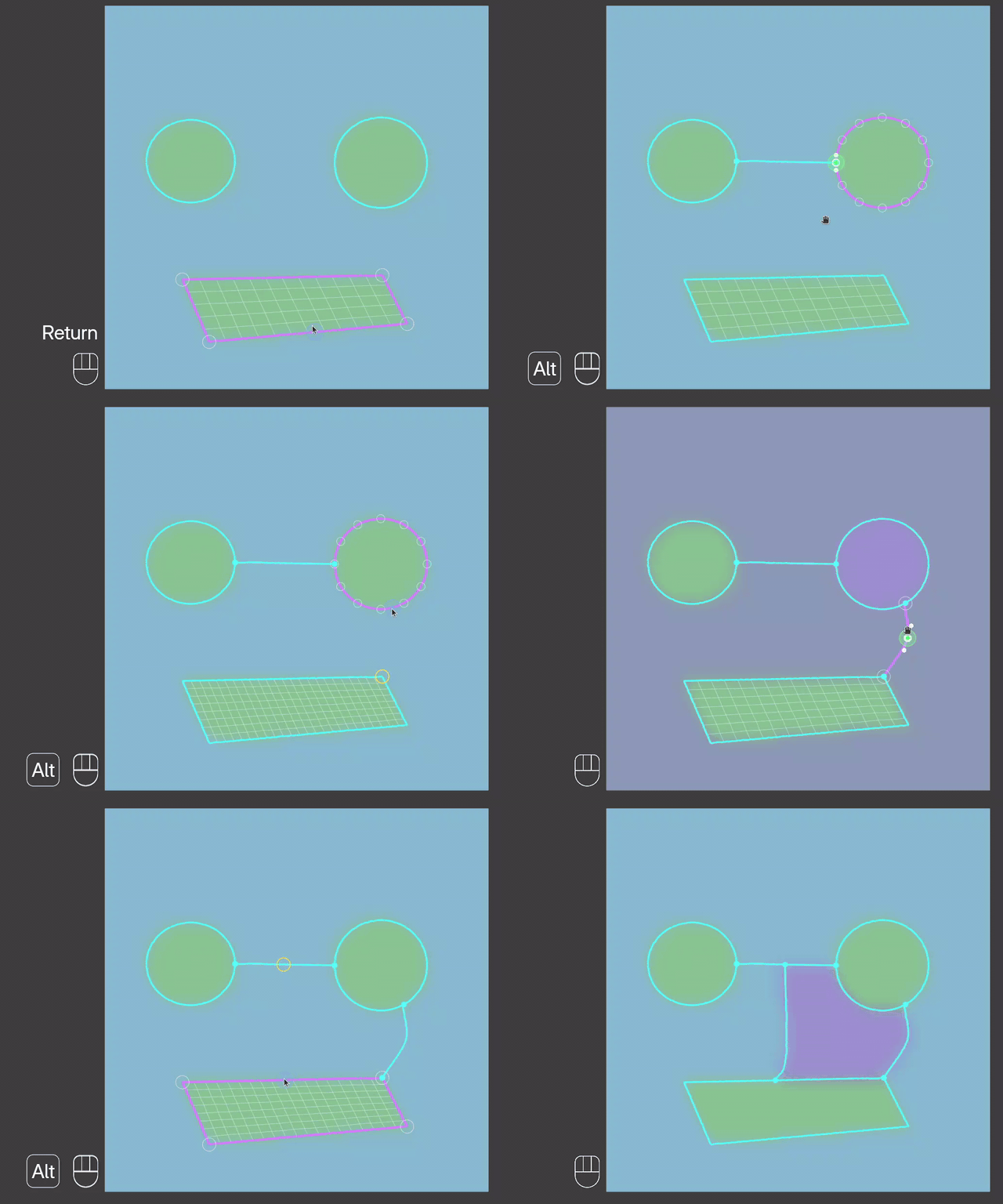
Shortcut: Alt and click two points (connect)
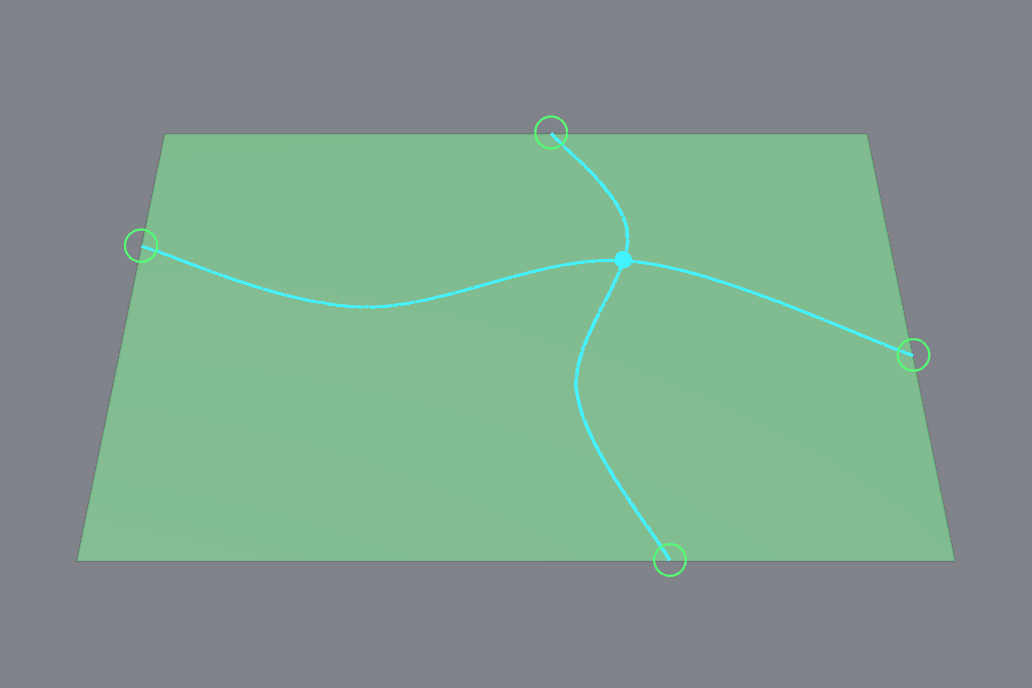
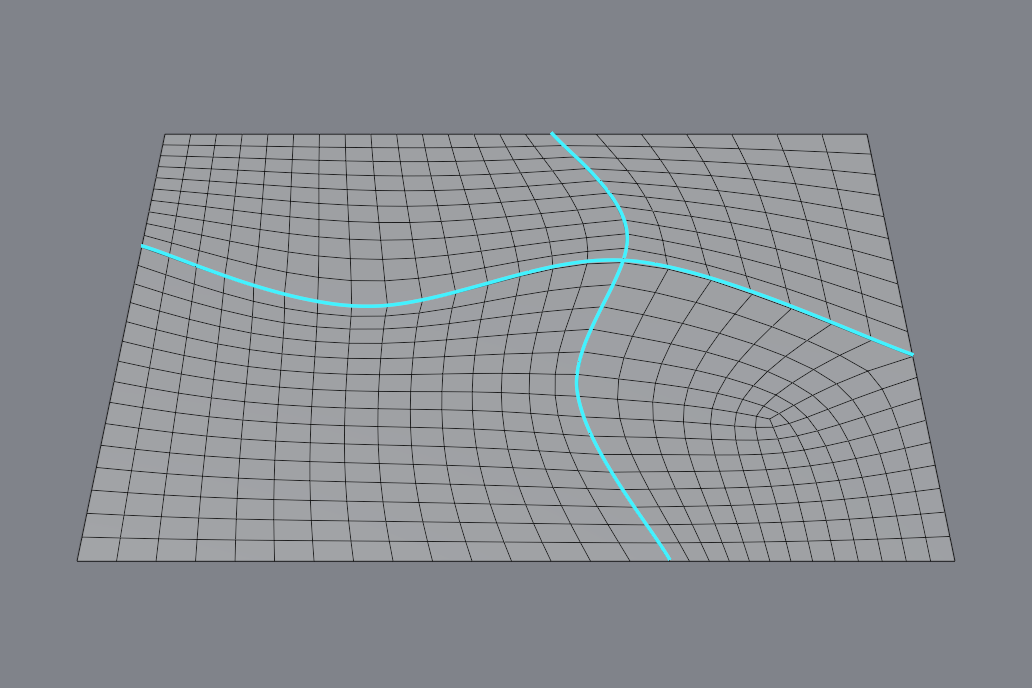
Where two guides meet they share a point, a junction, shown as a cyan pin. The two guides move together.
Glue a Point
Drag a point onto another guide. A stroke that starts or ends on a guide is glued automatically.
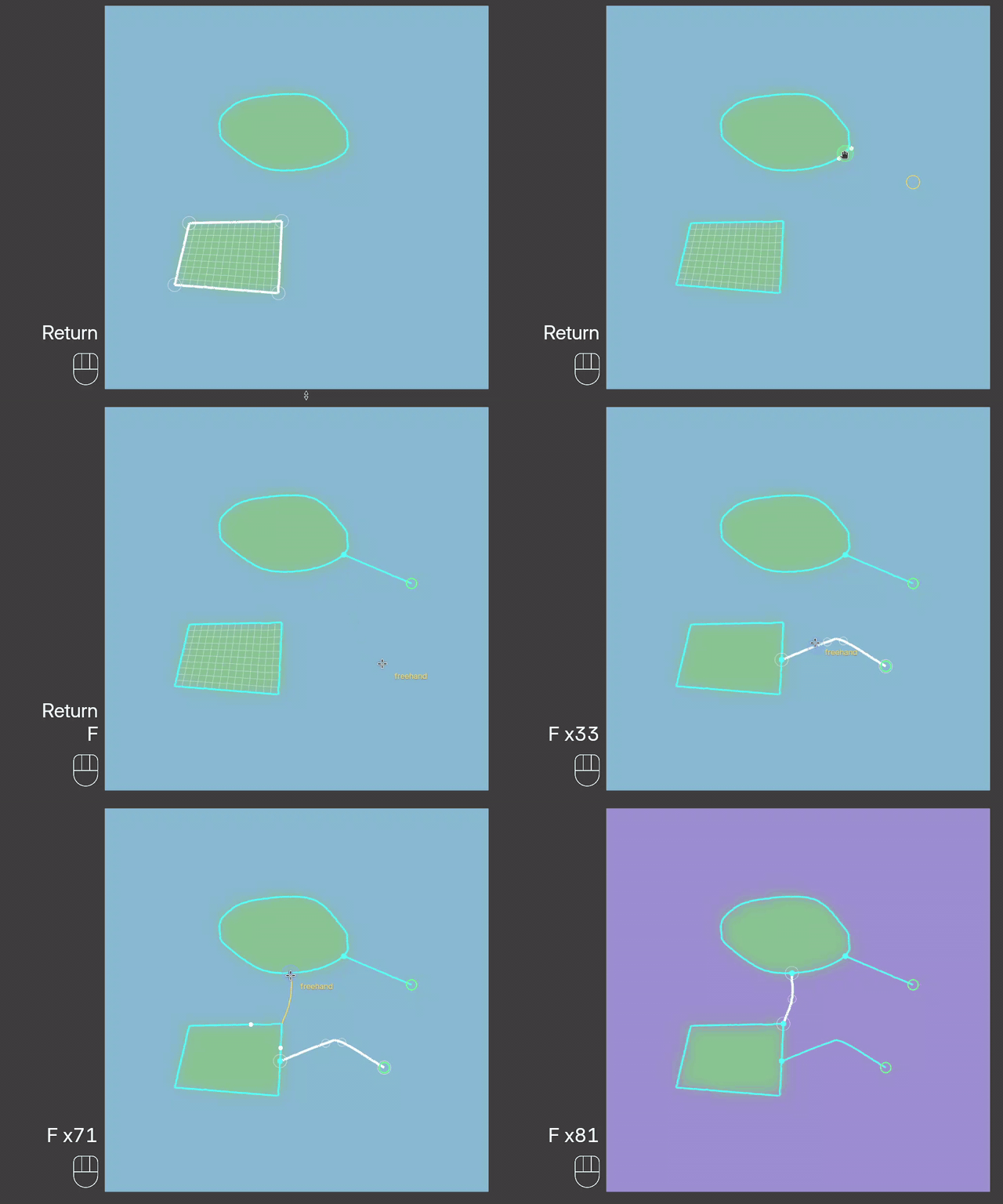
Move a Junction
Drag the pin. Ctrl and drag pulls it free.
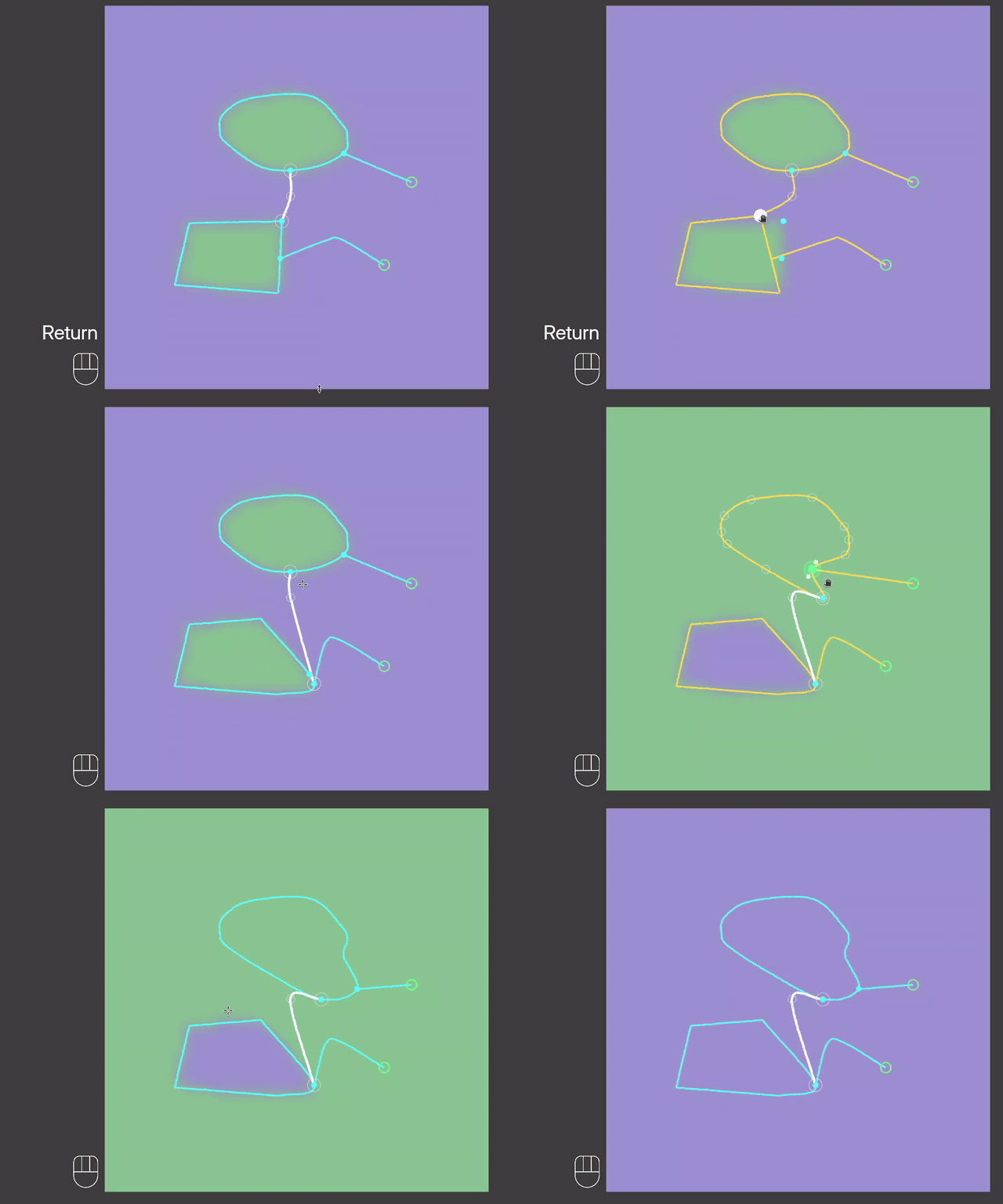
Start from a Guide
Hold F and drag from a point or a line.
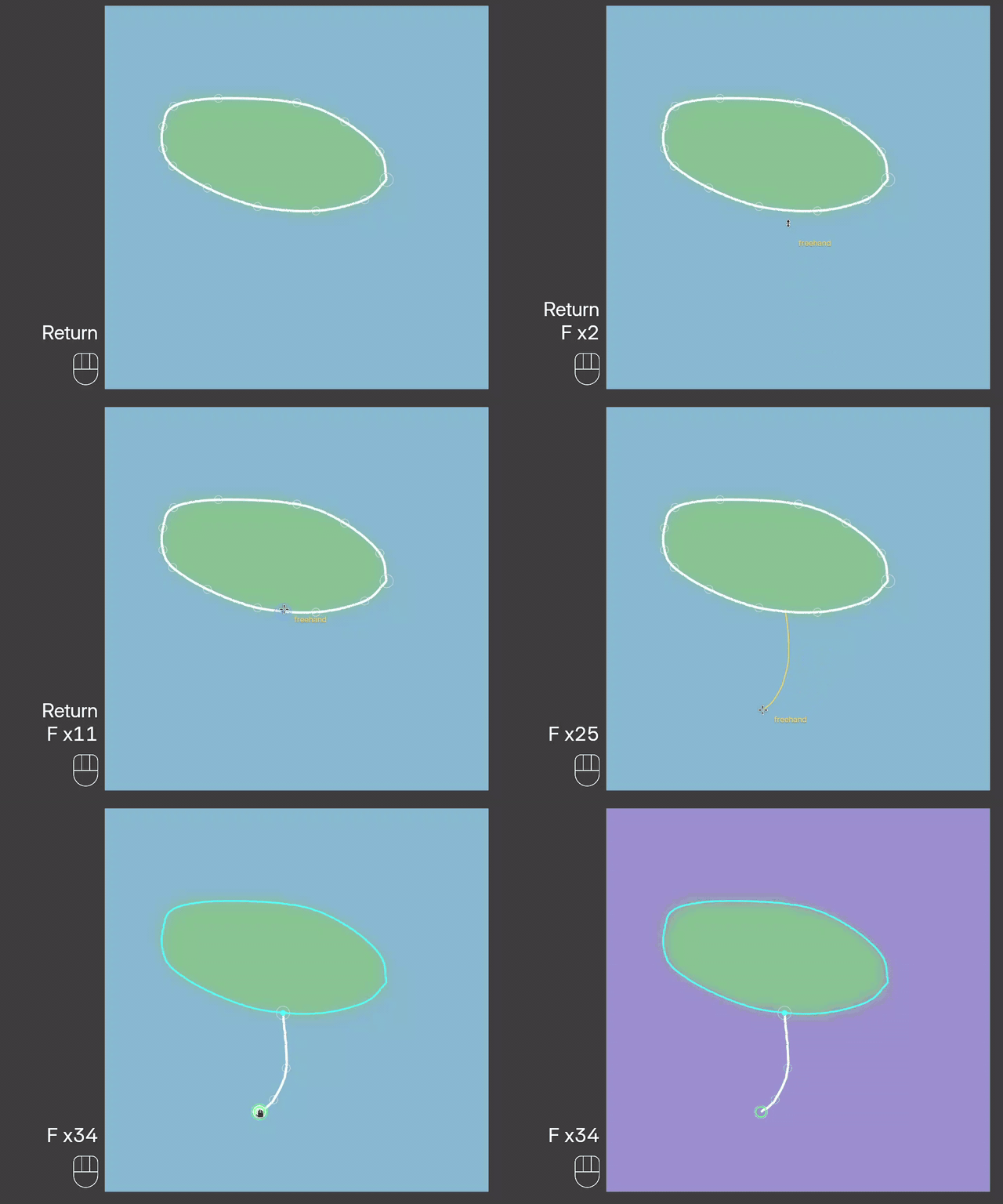
End a Line That Meets Nothing
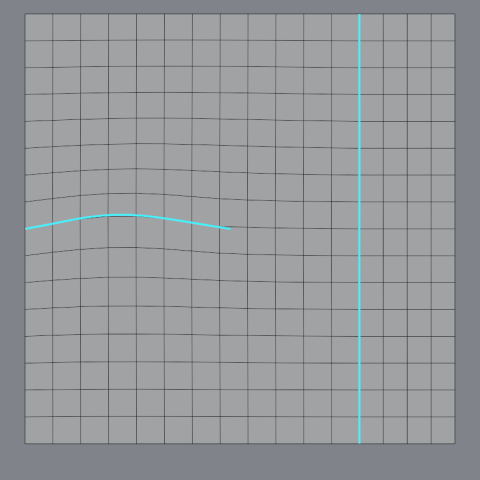
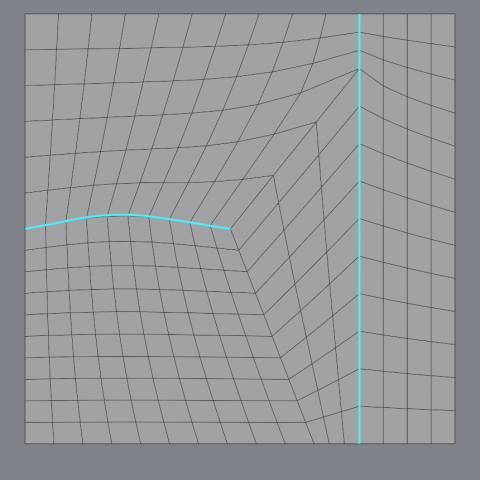
A loose end shows a green ring. Hold P and click it until it shows a violet dot to make the line stop exactly there, with a pole at its tip.
| Green ring (auto) | Violet dot (stop) |
|---|---|
 |
 |
Connect Two Points
Hold Alt and click two points.
Good to Know
- Two guides that cross get a pin without gluing; the junction goes there.
- A region closes only when its guides meet. A guide that stops short leaves it open.
Examples
Two Guides Crossing