Points and Handles
Mode: Object Mode, in Draw
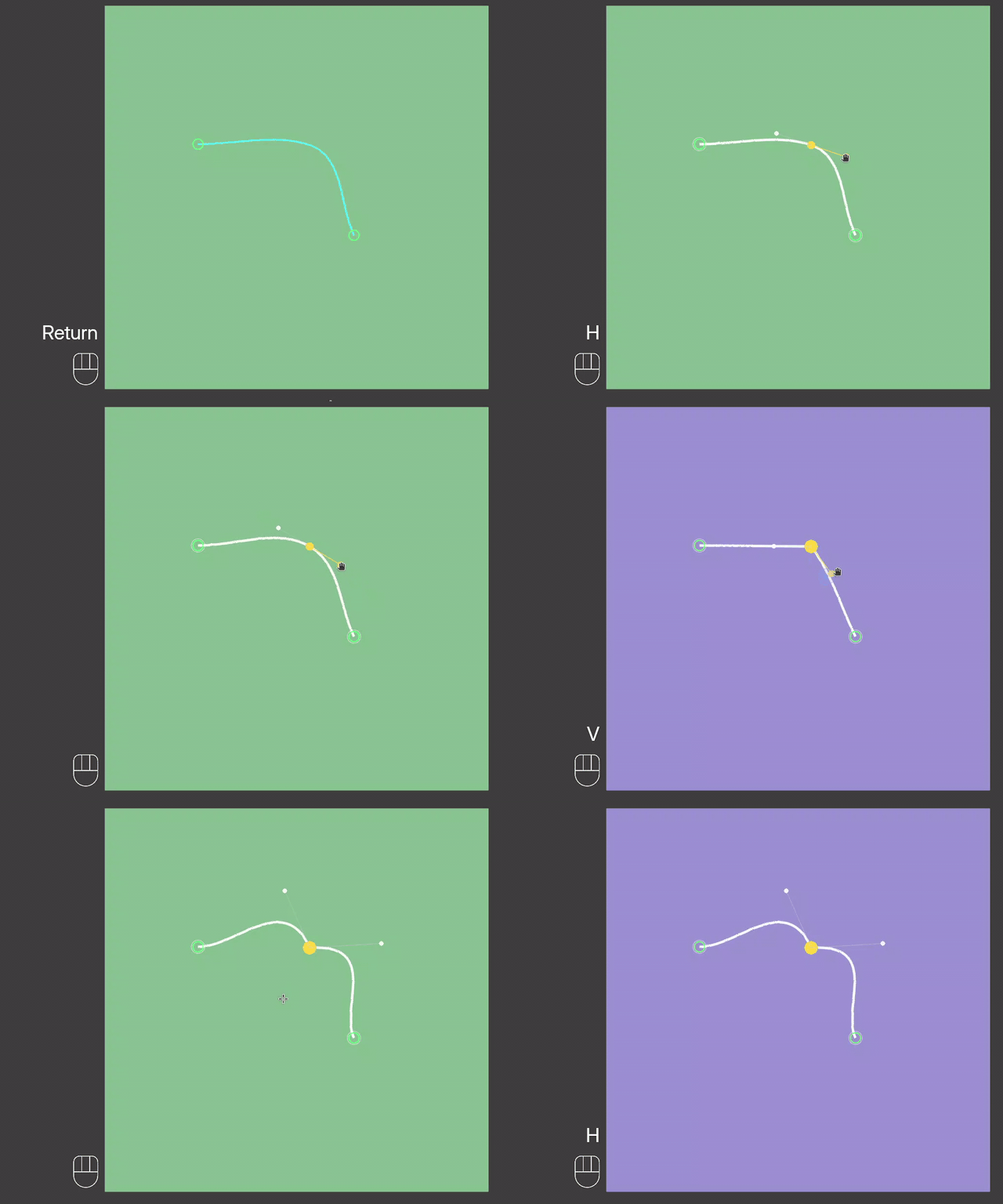
Shortcut: G move, S scale handles, R turn handles, V sharp or smooth
A big marker is a sharp corner; a small one is a smooth point with handles.
Select
- Click a guide
- Selects the guide. Hold Shift to add it to the selection.
- Click a point
- Selects the point and its guide.
- L and click
- Selects the guide and every guide glued to it.
- A, Alt+A
- Selects all guides, or none. A click on bare mesh also deselects.
Move
Drag a point to move it. Shift slides it along its guide.
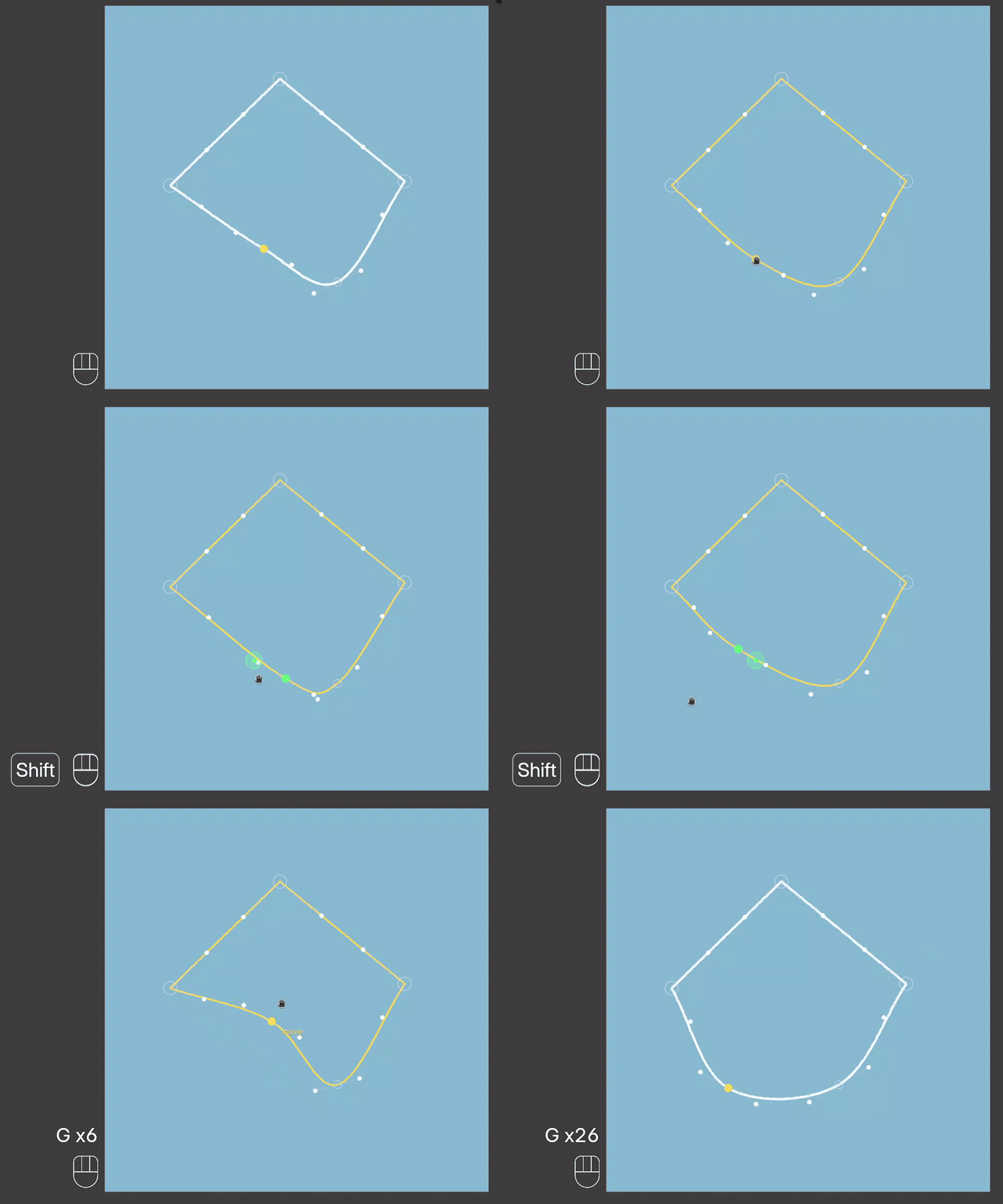
Hold G and drag a line to move the whole guide.
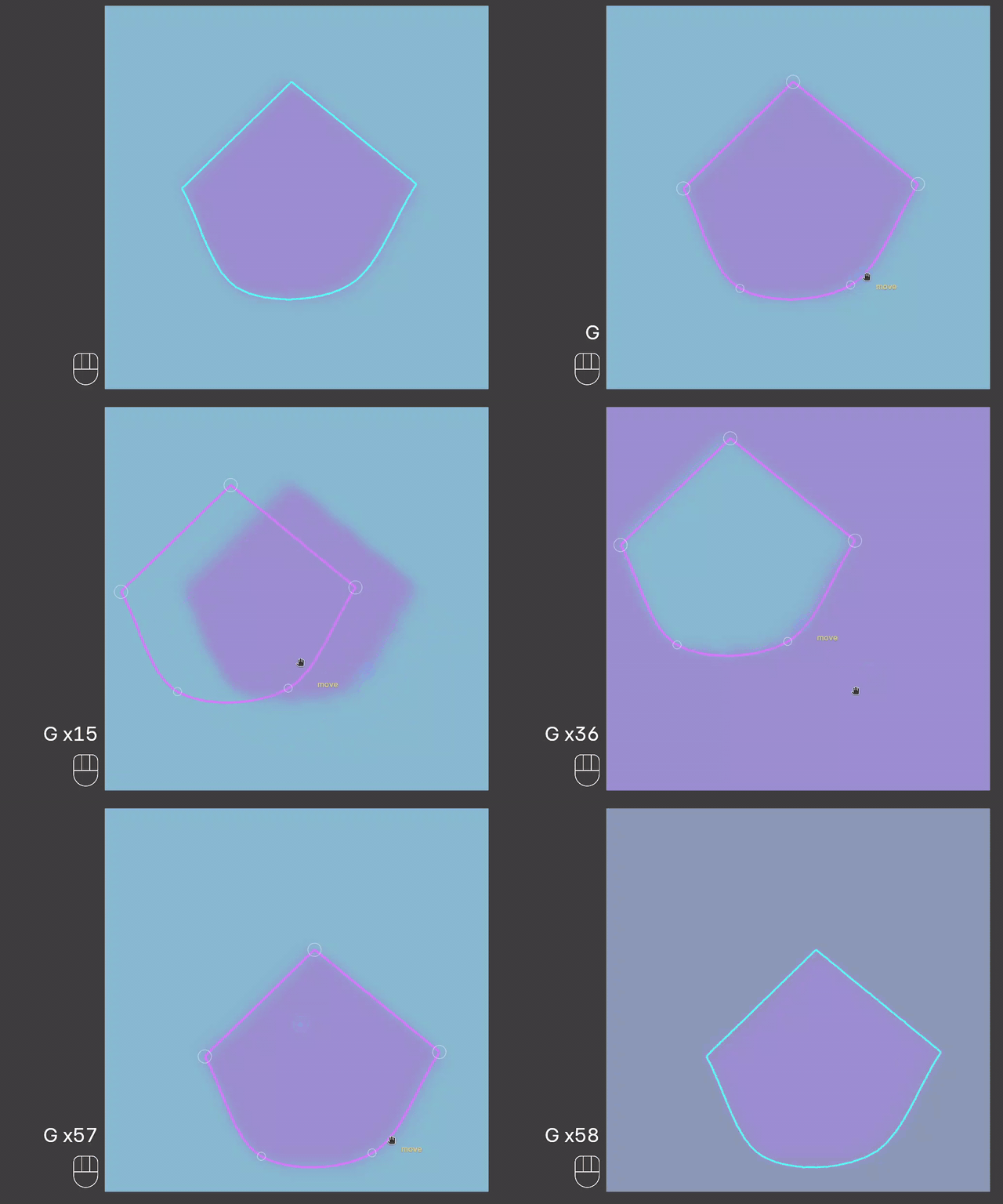
Tap Keys
Select a point, tap a key, move the mouse, click to confirm.
- G
- Moves the point.
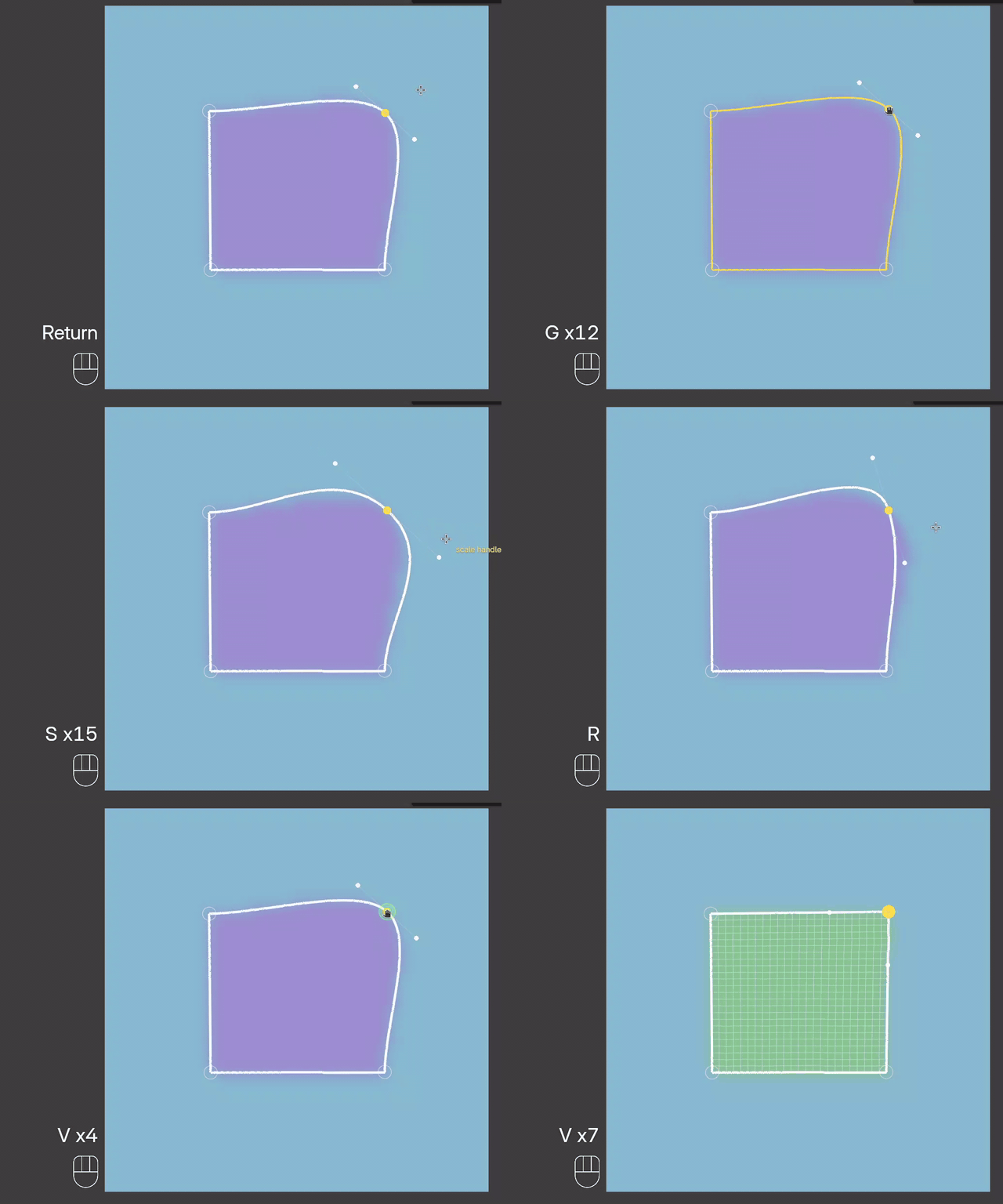
- S
- Scales its handles, for a wider or tighter curve.
- R
- Turns its handles. Hold Ctrl for 15° steps.
- V
- Makes the point sharp or smooth.
Handles
Drag a handle's end to bend the curve. H shows all handles.
Add and Delete
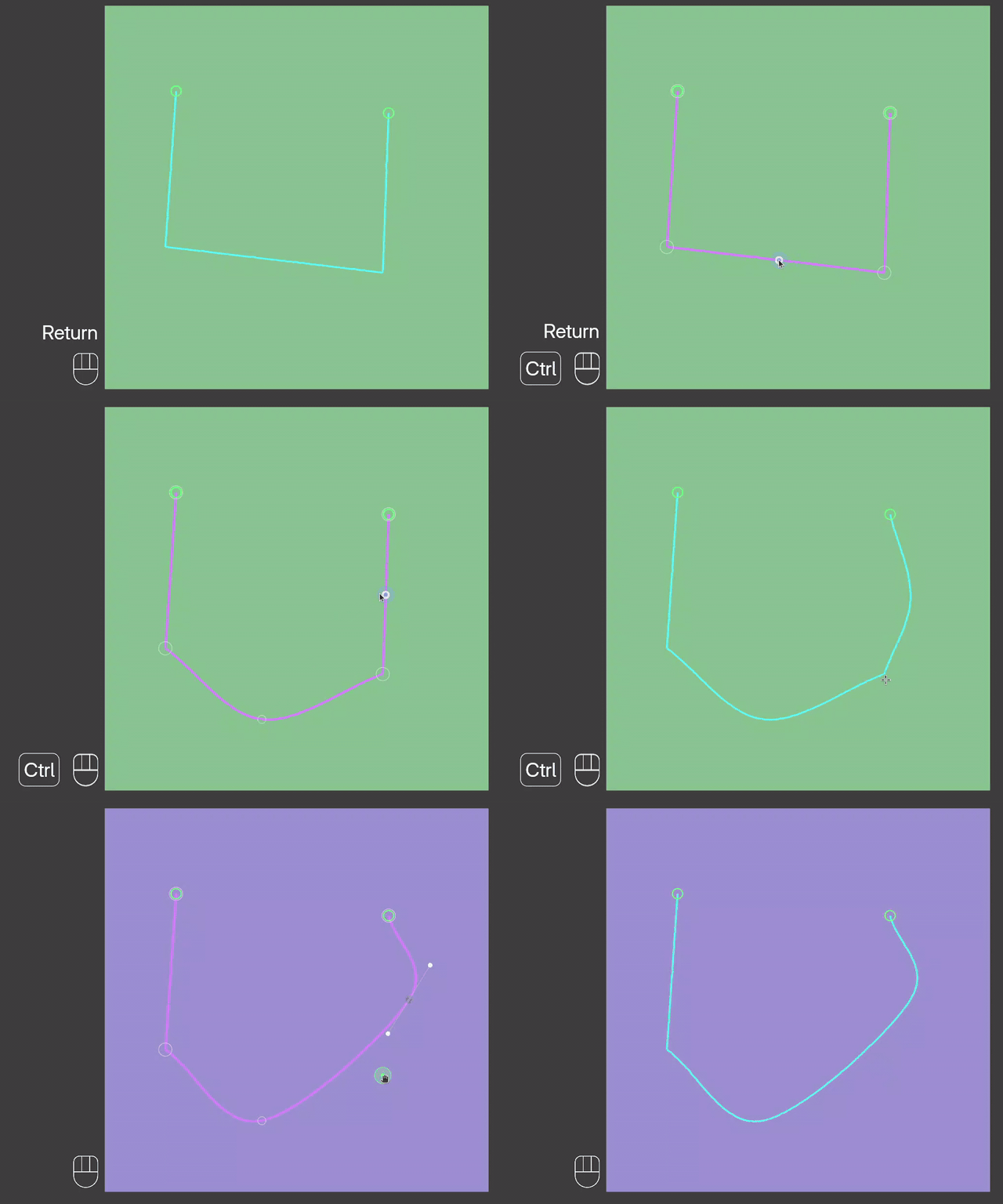
- Ctrl and click a line
- Adds a point there.
- Ctrl and click a point
- Deletes the point.
- Ctrl and wheel
- Gives the guide fewer or more points and keeps its shape.
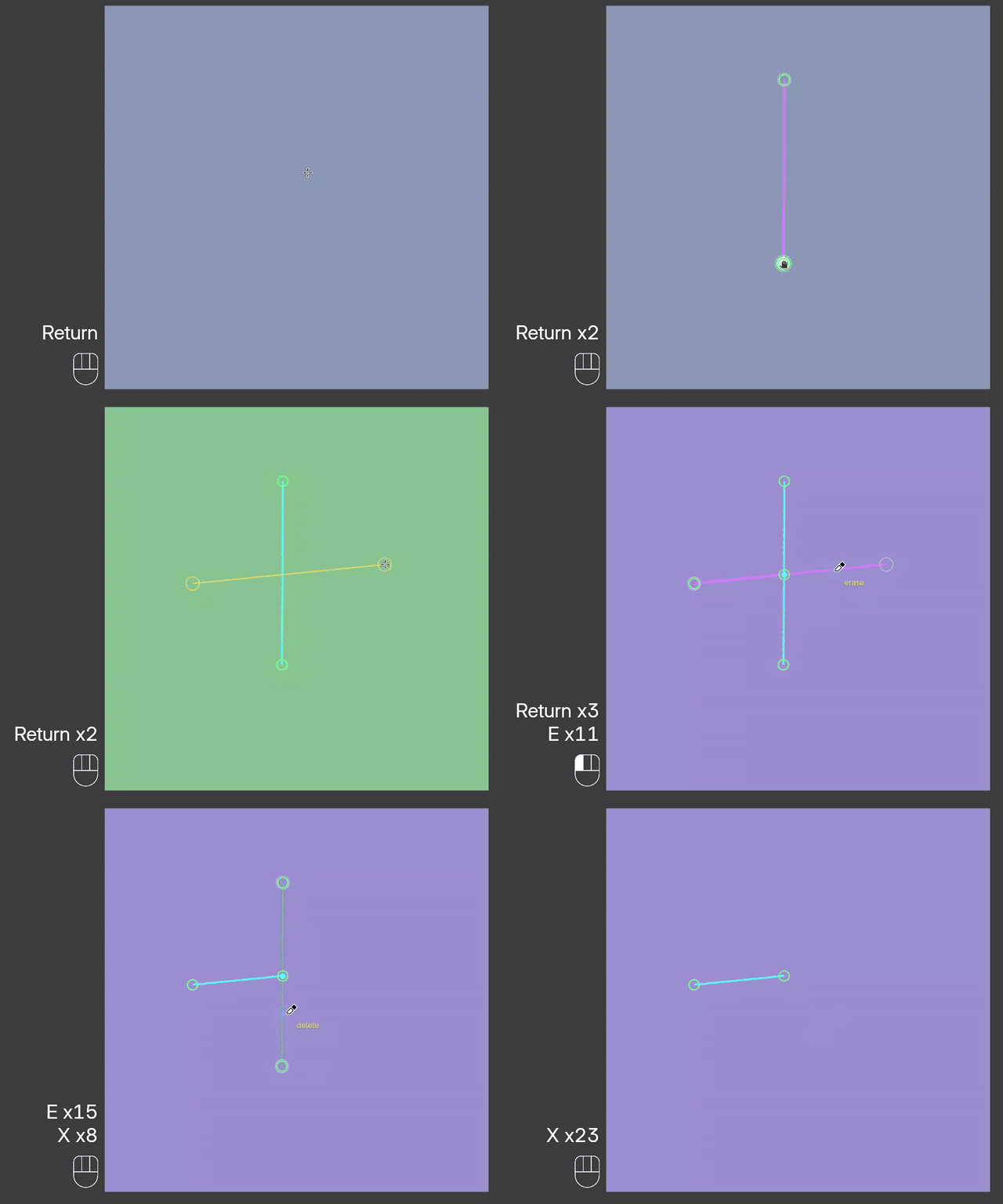
- E and click
- Erases the section between two junctions.
- X and click
- Deletes the guide. Del deletes the selected guides.
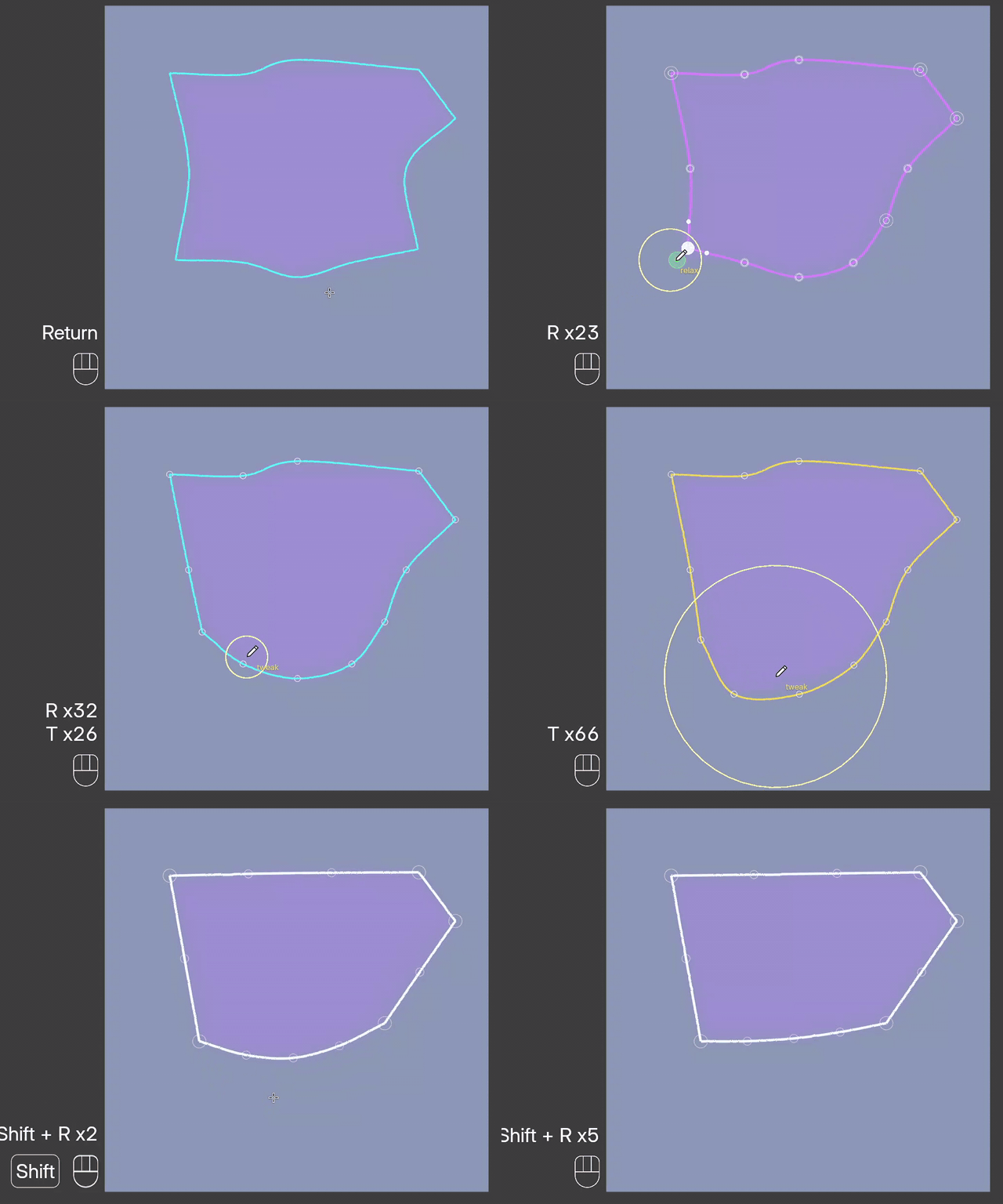
Brushes
Hold R and drag to smooth a guide. Hold T and drag to push it. The wheel sets the brush size. Shift+R smooths the whole selected guide.