Expert settings
The sliders behind the styles. Turn them on in Edit > Preferences > Add-ons > QuadGuide > Expert Settings; the Expert section then appears in the panel. It also appears after you import a settings file. The same switch shows the Review checklist under a result. Change any of them and the style shows Custom.
Shape
What kind of model this is.
- Standard: an even edge flow for any shape: hard surface, CAD, scans.
- Organic: for characters and sculpts: dense quads where the form is detailed (eyes, nose, toes) and coarse ones on broad areas, with poles where the density changes, as in hand-made topology. Character and Sculpt / Scan use it.
Hard Edges and Angle
Hard Edges: the flow follows edges sharper than Angle (degrees between the two faces; default 40). Character and Hard Surface turn it on; Sculpt / Scan turns it off, because surface noise would read as hard edges.
Curvature
How strongly the flow turns to follow the directions the surface bends in (0: the smoothest flow). Default 0.03.
Organic Strength
Organic shape only: how strongly the edge flow makes room for size changes, with poles where the density changes. 0 is like Standard. Default 1.
Small Detail Limit
Organic shape only: detail sharper than this (curvature times quad size) gets no poles of its own, so pits and bumps under a quad wide do not fold. Higher lets more detail steer the flow. Default 2.
Adaptive Size
How much quads shrink where the surface curves strongly (0: all quads the same size). Default 50.
| 0 | 50 | 100 |
|---|---|---|
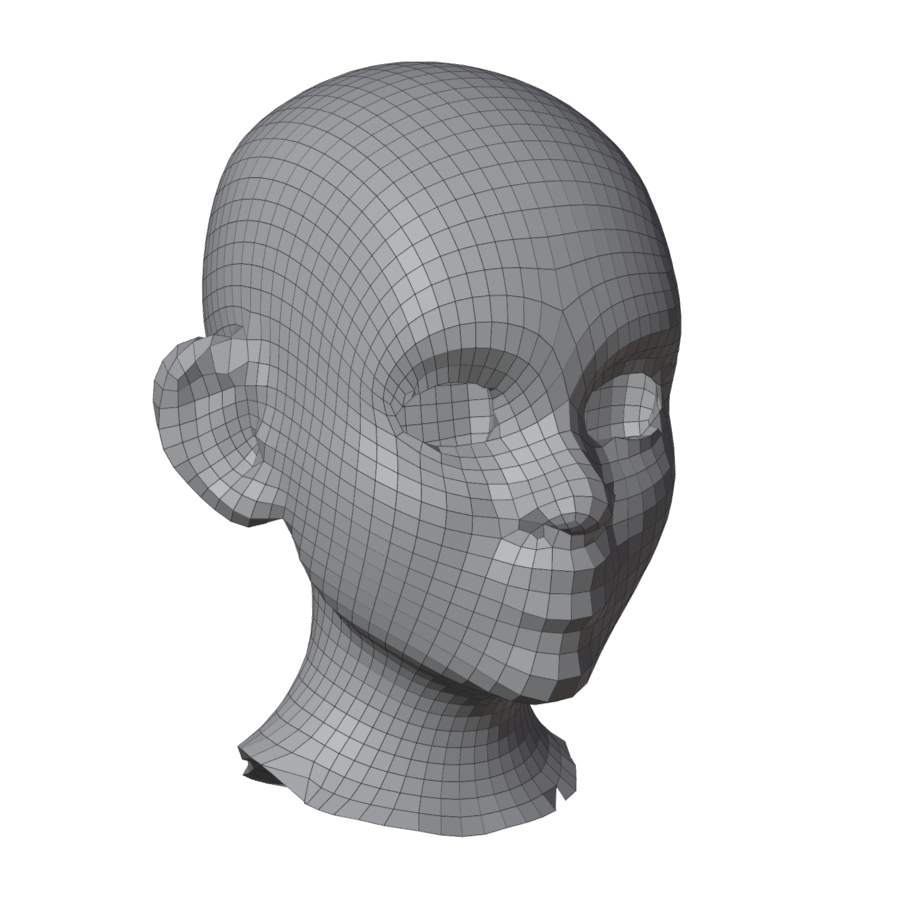 |
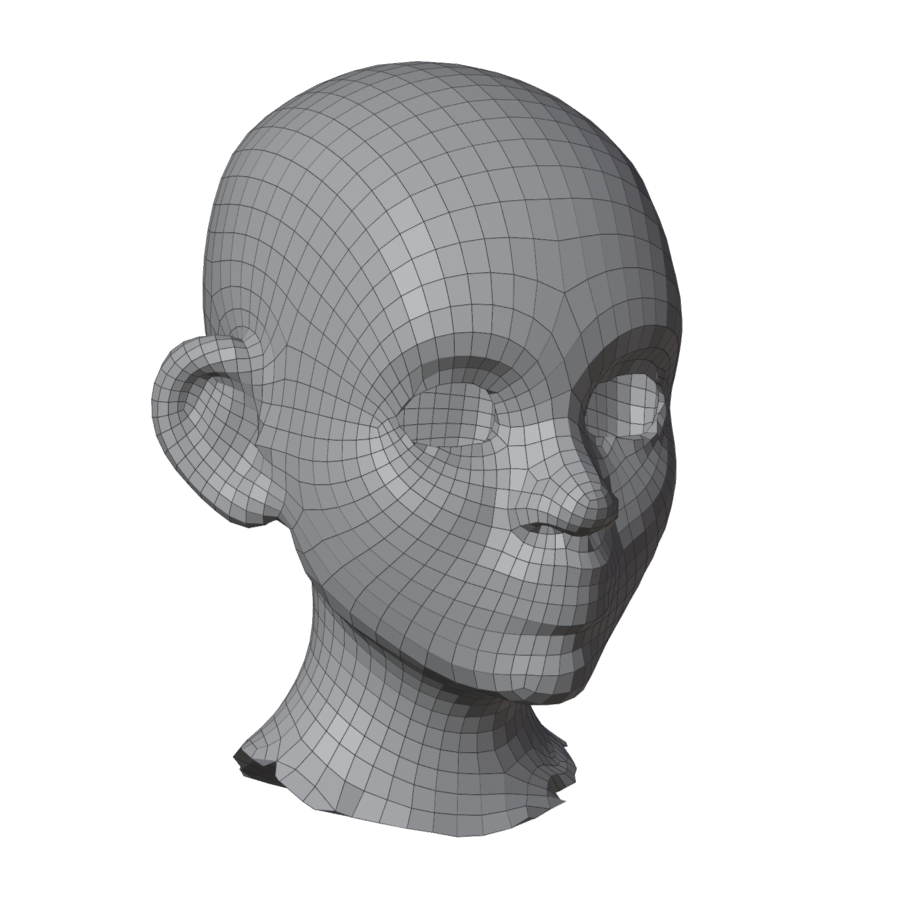 |
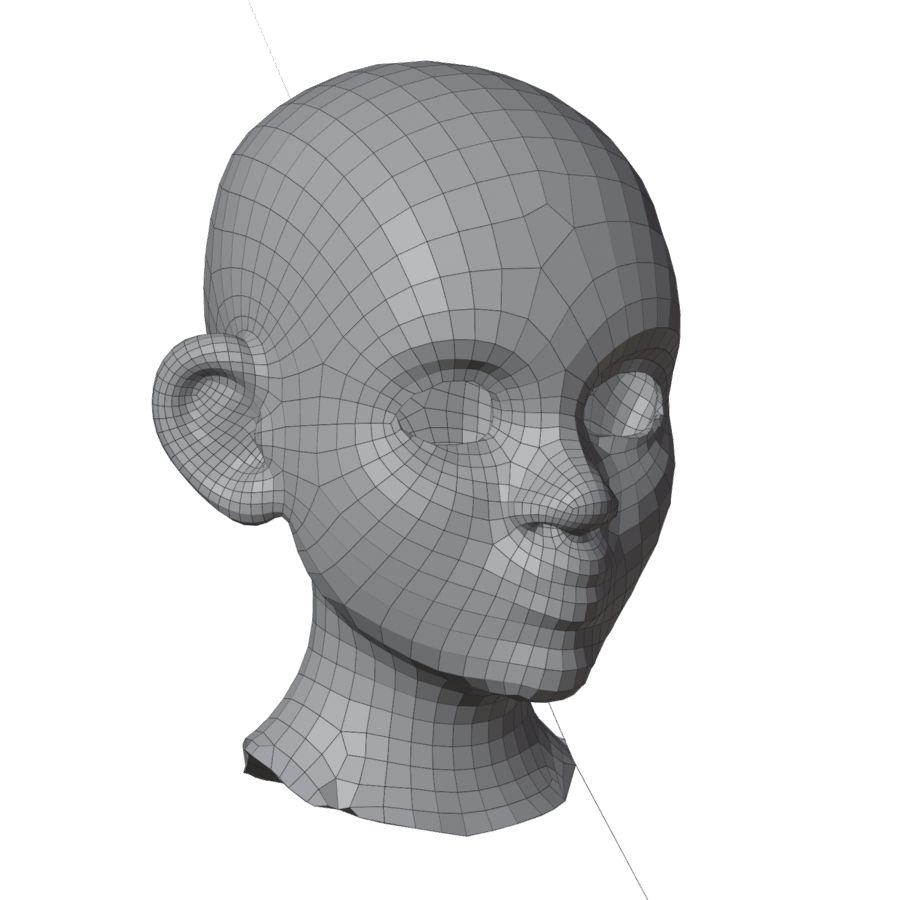 |
Size Smoothing
How far quad sizes are averaged, in quad lengths. Higher gives calmer size changes. Default 0.5.
Size Gradation
How fast the quad size may grow from small to large (0: no limit). Default 0.3.
Smoothing
Relaxation passes over the result. More gives evener quads, a little less exact on fine surface detail. Default 10.
Fill Open Regions
With Fill Between: a region your lines leave far too big for its outline (the back of a head outside a face loop) is remeshed at the asked quad size and joined to the patches around it, instead of a few huge patches. On by default.
Snap Ends
The same as Snap in the guide tools' header: line ends snap onto other guides and stay on them.
Guides
The collection that holds this mesh's guide curves. The curve icon adds a new guide curve to it and starts drawing. You can also put your own curve objects in the collection: closed curves become edge loops.
Time Limit
Seconds after which a remesh stops with a message, naming the stage it was in, instead of running on (0: no limit). Default 600.
Retry Until Clean
When a result fails the check, the engine first tries close fixes by itself: the bad spots cut out and filled again, then close variants (1 % more or fewer quads; for organic shapes, finger webs not taken as hard edges). The first that passes is kept and the card names it. On by default.
Import / Export Settings
Export Settings saves the style, switches and sliders to a small .json file. Another
artist uses Import Settings to get exactly your setup. Unknown or out-of-range values
in a file are ignored or clamped.