Drawing guides
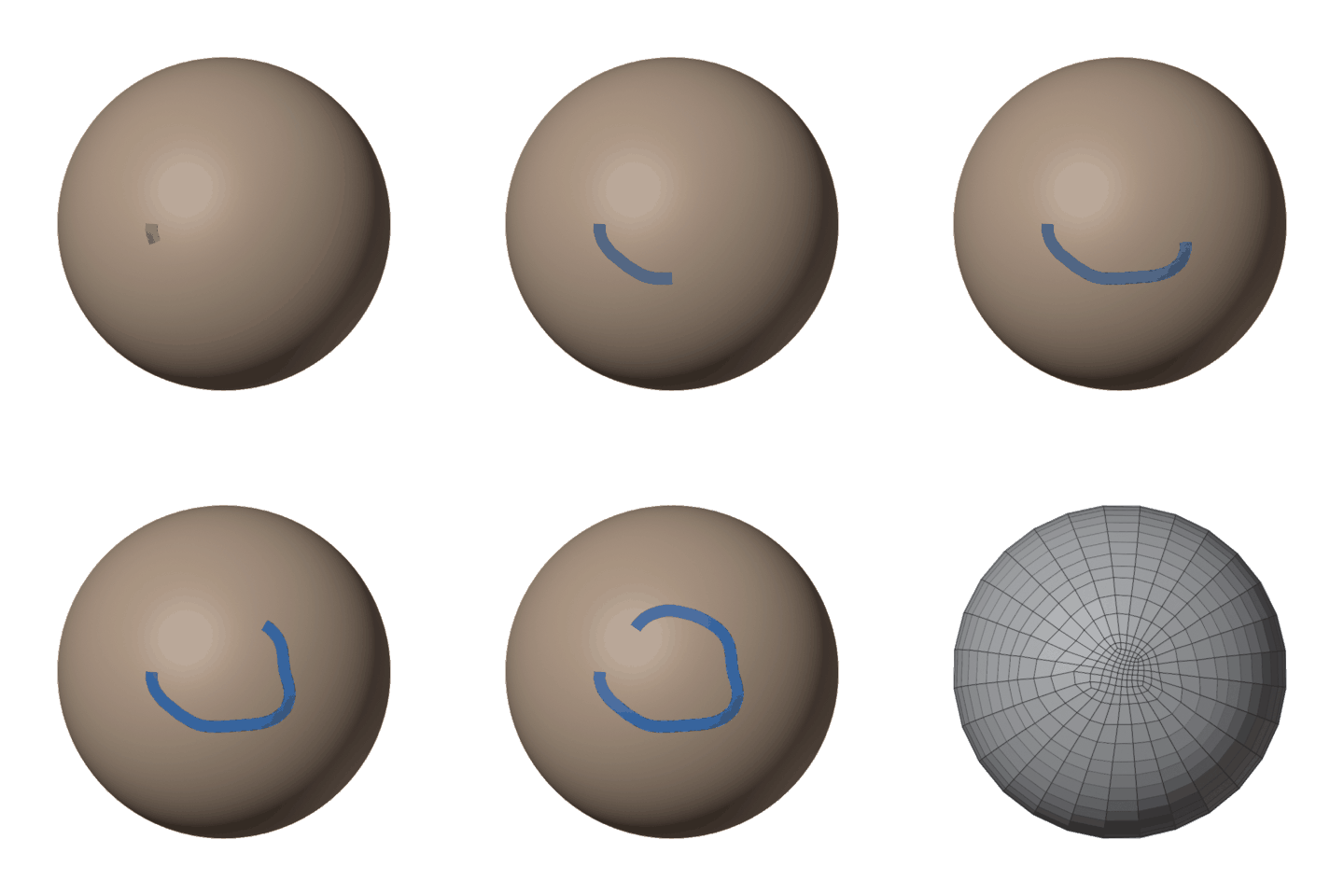
Press Draw in Guide the Flow, or pick a guide tool in the viewport's toolbar (Object Mode). The tools work like Blender's own. A card in the viewport's corner lists the keys for what you are doing; ? in the header hides it.
To stop drawing: Esc (twice if points are selected), pick another tool, or press Stop Drawing.
The tools
W opens a pie of the tools. The number keys pick them too (without Emulate Numpad).
| Key | Tool | Drag on the mesh | Ctrl while dragging |
|---|---|---|---|
| 1 | Draw | A freehand line; end where you started for a loop. A click places points one by one (the pen, below). | |
| 2 | Line | A straight line, laid over the surface. | Snap the angle in 15° steps and onto guide points. |
| 3 | Circle | A loop from its centre out: eyes, mouth, nostrils. | The radius in whole quads. |
| 4 | Contour | A stroke across an arm, a leg, a finger or the neck: the loop where it cuts the limb. Shift: drag along the limb for rings all along it (the wheel: more or fewer). | |
| 5 | Relax | A brush that smooths the guides under it. F: brush size. | |
| 6 | Tweak | A brush that grabs the guides under it: they follow the mouse, the middle most. | |
| 7 | Vertex Loop | Click vertex by vertex where the edge count matters (below). |
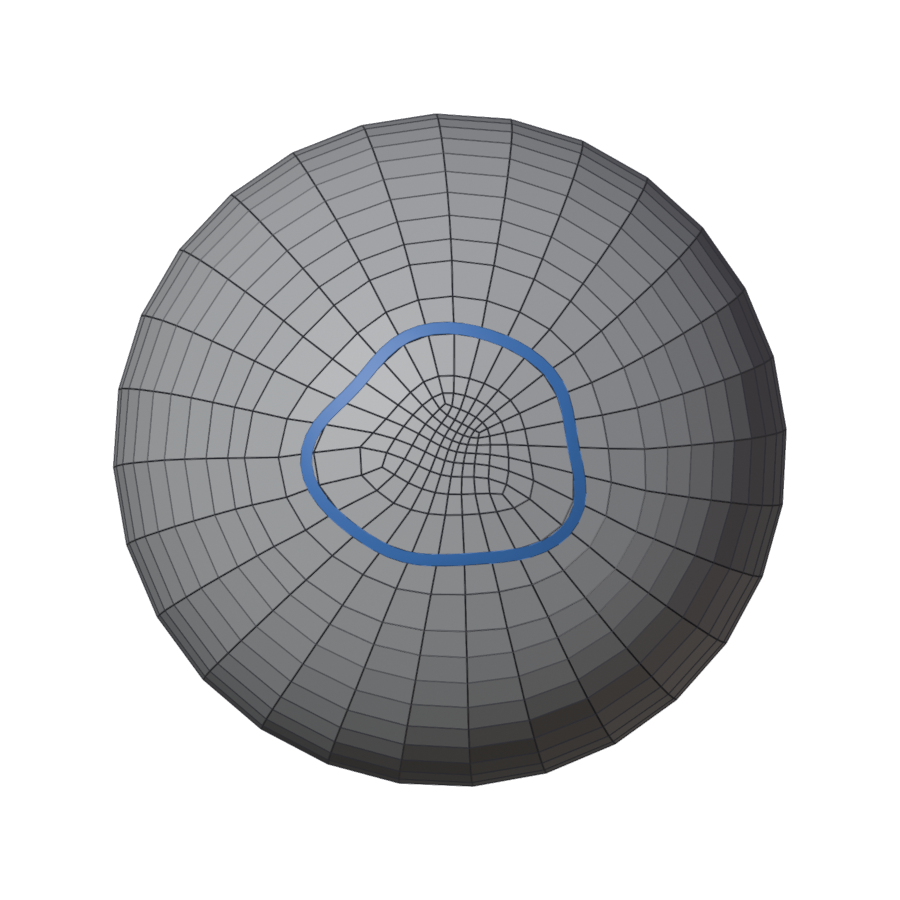
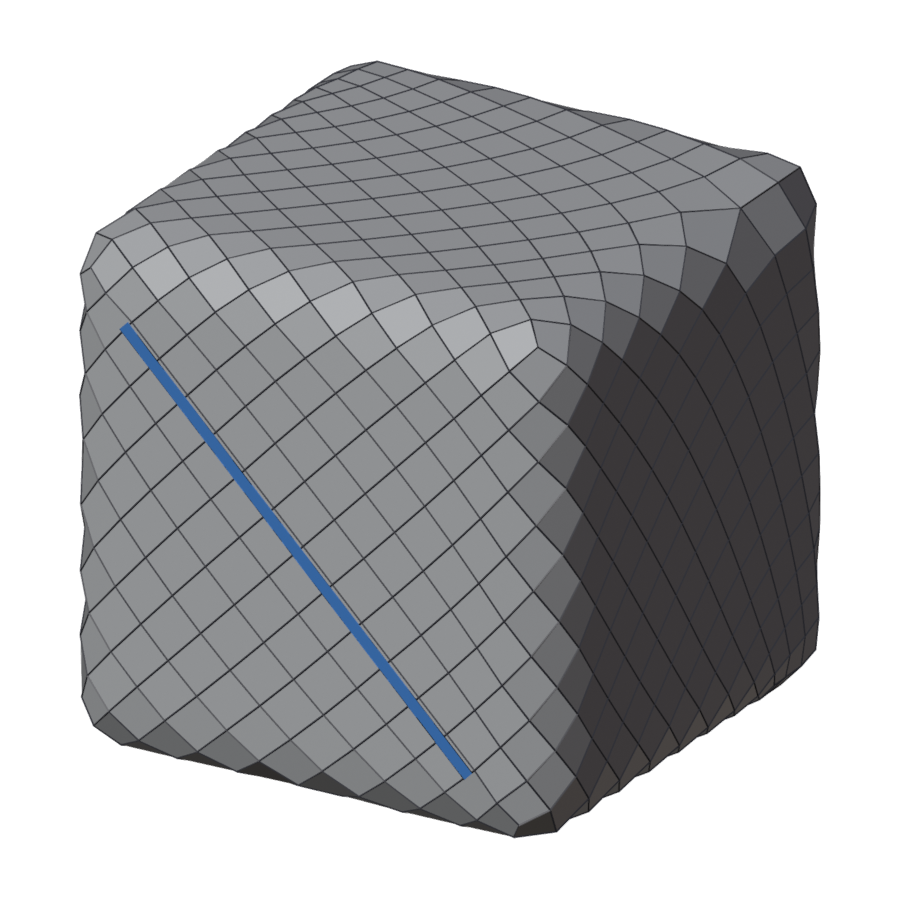
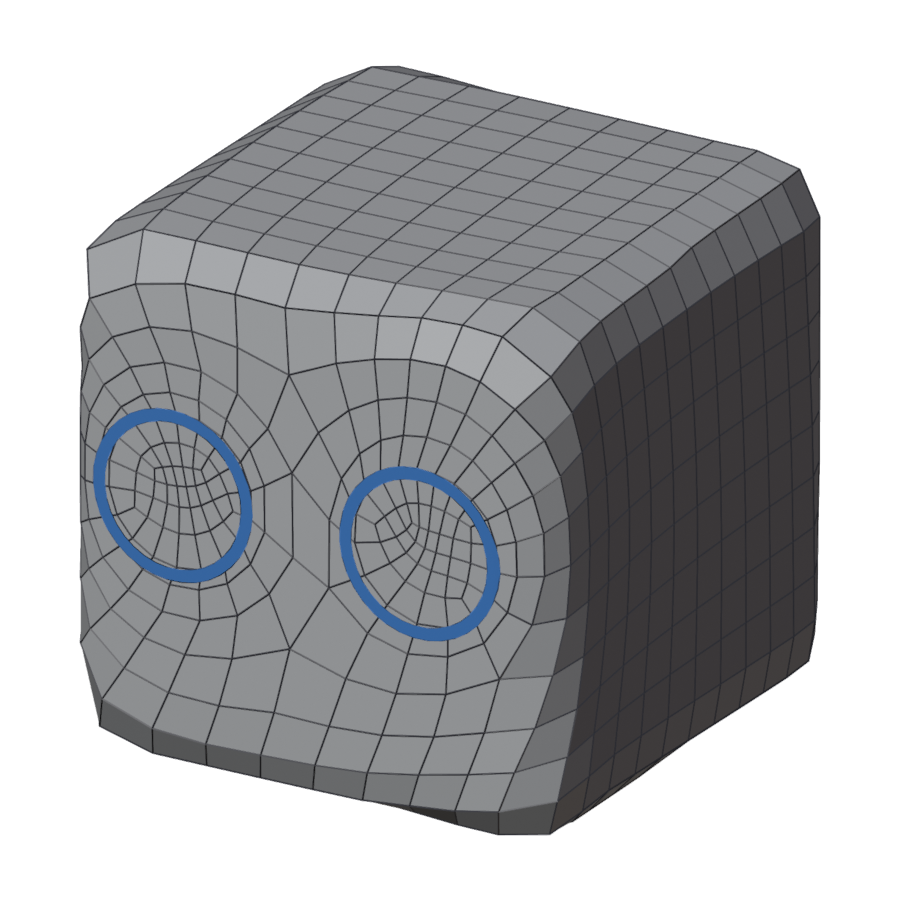
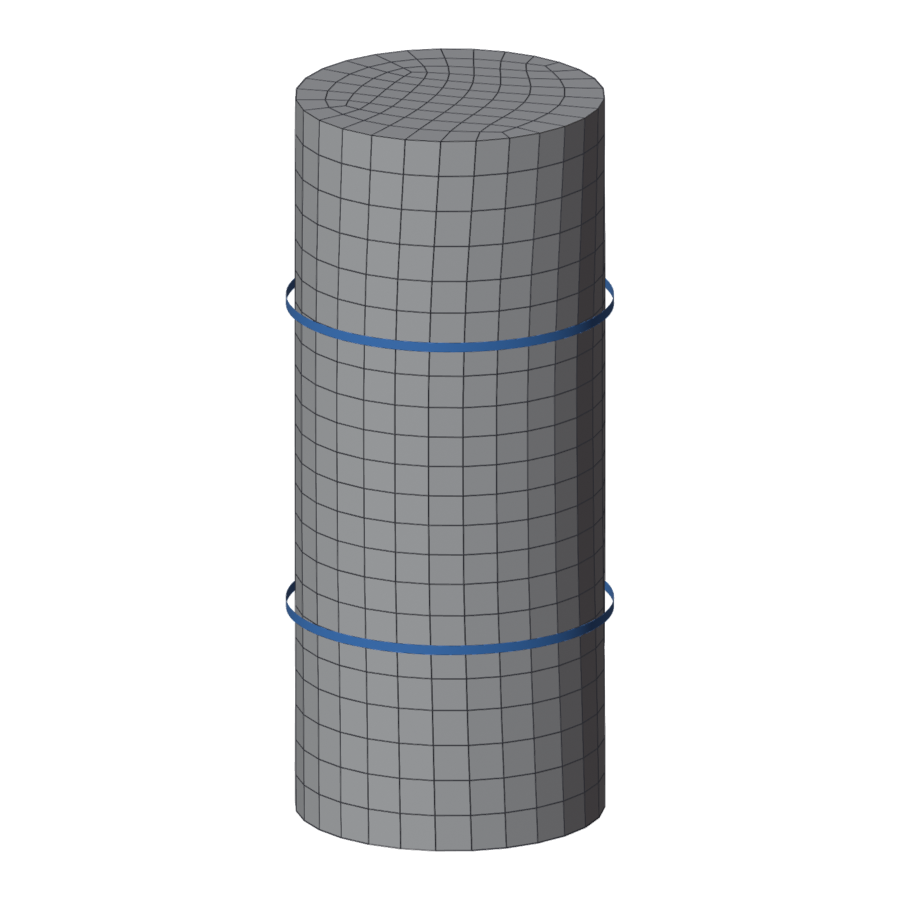
What each tool draws (blue, on the original) and what the remesh makes of it, with Fill Between off so that the lines steer the flow:
| Tool | Drawn | Remeshed |
|---|---|---|
| Draw: a freehand loop round the muzzle | 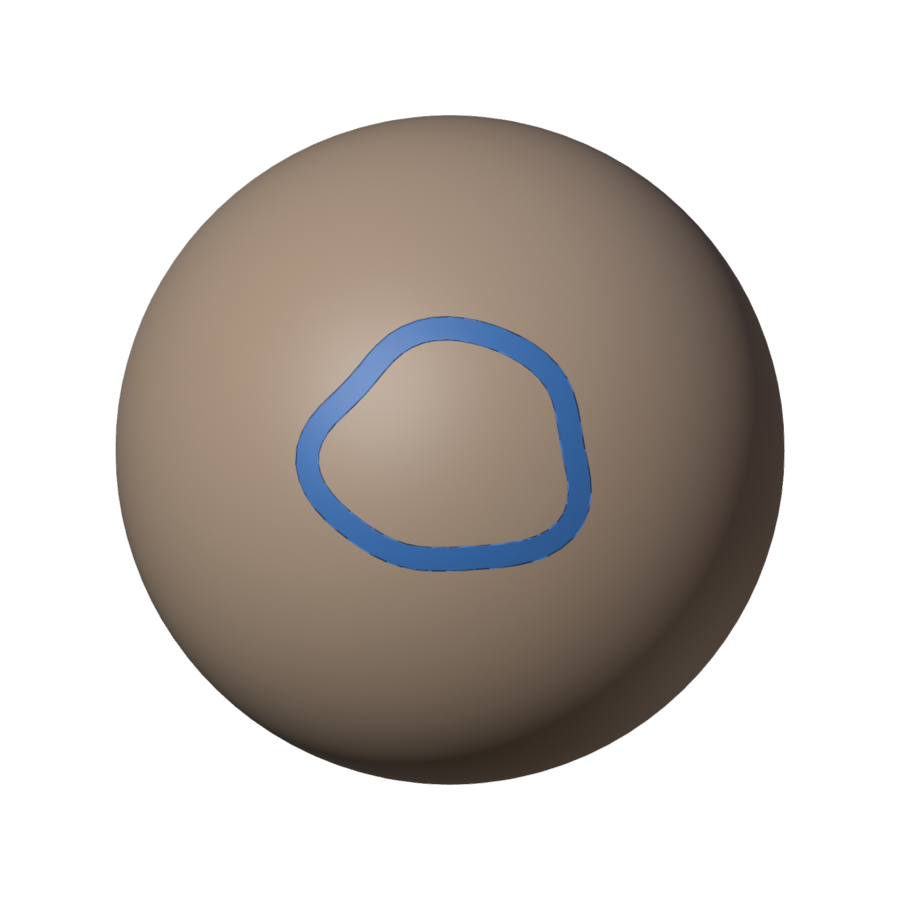 |
 |
| Line: over the top of the head | 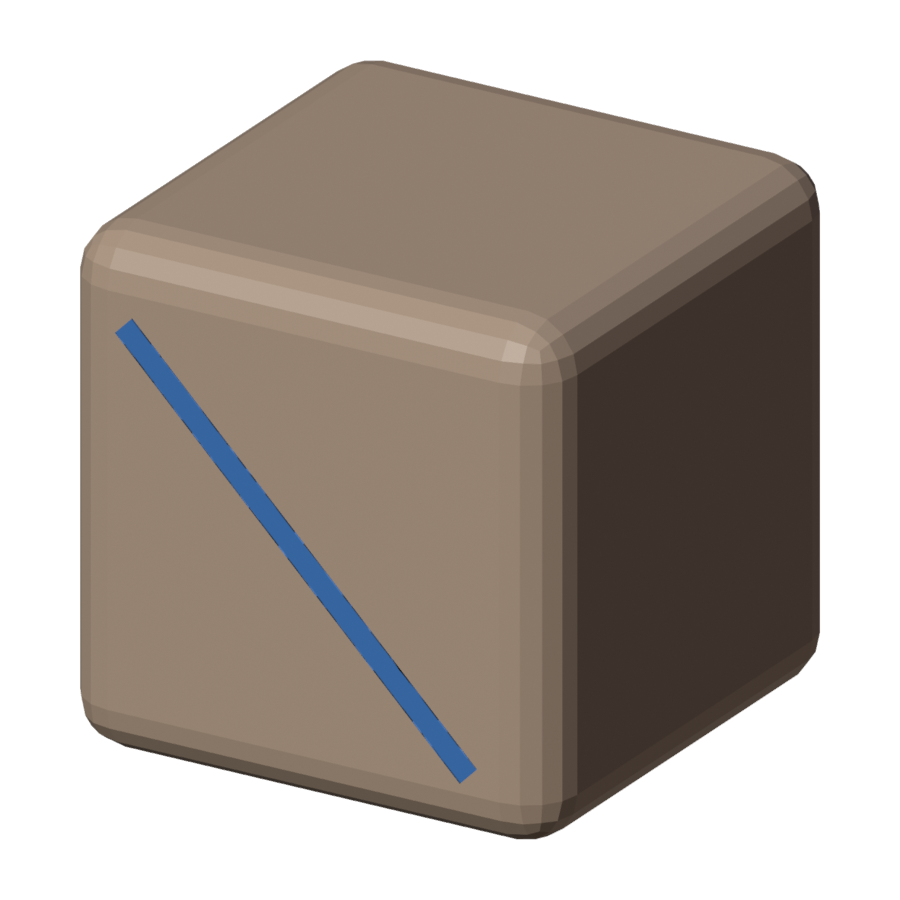 |
 |
| Circle: round each eye | 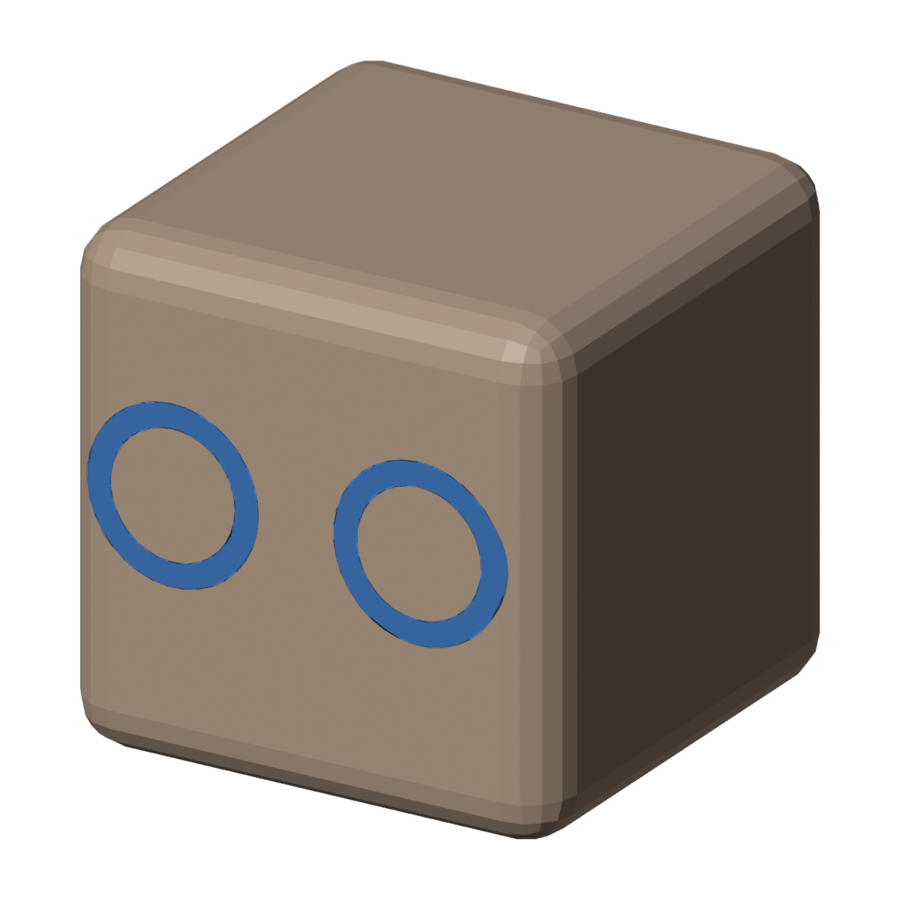 |
 |
| Contour: across Spot's front legs | 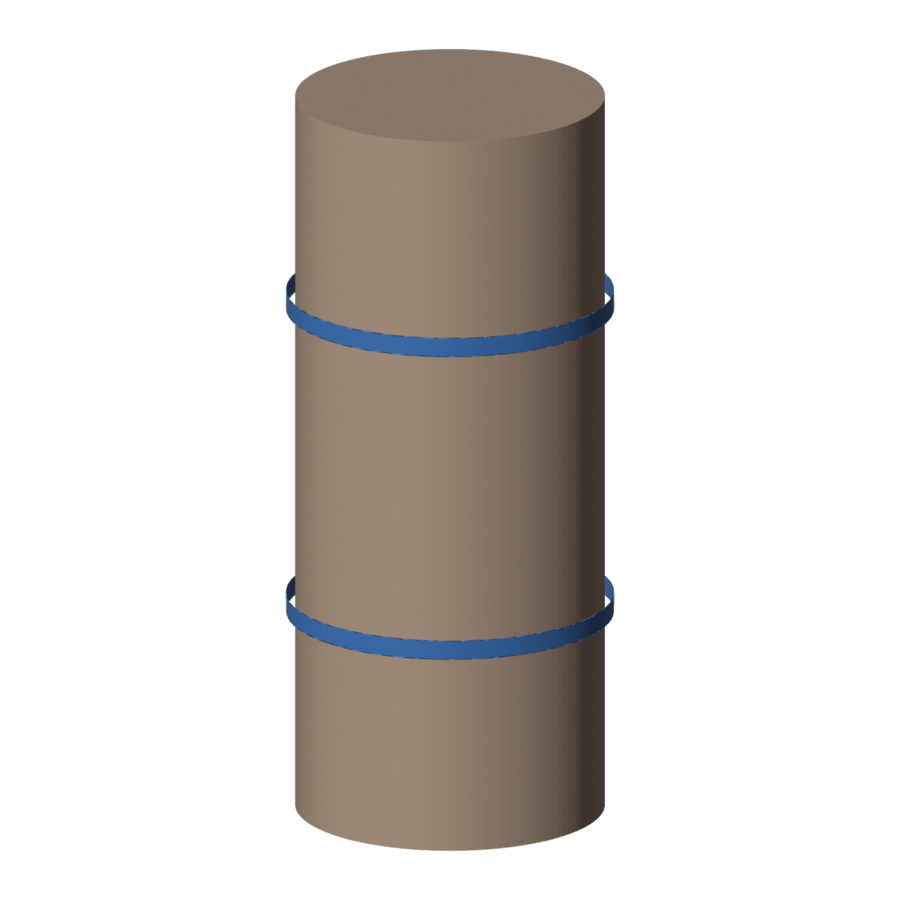 |
 |
While a guide tool is active, the overlay shows what the remesh will make of your guides. With Fill Between on (the default), each region is tinted by the patch it fills as, each line shows how many edges it gets, and thin lines sketch the rows: see Read the overlay. With Fill Between off, a region tinted red is too small for a couple of quads: usually two guides running too close. Regions and Sketch in the header turn the tint and the sketch off.
The pen
With Draw, click on the mesh instead of dragging:
- A click places a sharp corner; a click-drag places a smooth point.
- Click the first point again to close the loop.
- A click near another guide snaps onto it and the line goes on.
- Enter, a right click, or clicking the last point again ends the line open.
- Backspace takes back a point; Esc cancels the line.
Vertex Loop
Each click is a vertex of the result: the remesh gives the loop exactly one edge per edge you place, with its vertices where you clicked. The count shows by the mouse while you draw and by each loop afterwards.
- Click the first vertex again to close the loop; Enter or a right click ends it open.
- A click on another guide's vertex shares it, so two loops meet there.
- A band between two loops needs counts that differ by an even number. A loop whose region cannot close shows its count in orange with the counts that would work.
Points
Every guide shows its points: round ones are smooth, square ones sharp corners.
| Key | Does |
|---|---|
| Click / Shift click | Select a point / add to the selection. |
| G | Slide the selected points over the surface. O: proportional editing (the wheel changes its reach). |
| Drag a point | Move it, with the other selected points. |
| Shift drag | Relax the guides under the mouse. |
| Alt+S | Relax the selected points: move the mouse away for more, click to confirm. |
| E | Extrude from a selected end point. |
| V | Make the selected points sharp, or smooth again. Alt click switches one point. |
| X / Del | Delete the selected points. |
| F or J | With two points selected: connect them along the shortest path over the surface. |
| Ctrl click | On a selected guide: add a point there; on a point: delete it. |
| L / Shift+L / Ctrl+L | Select / deselect the points of the guide under the mouse; all points of guides with one selected. |
Guides
While drawing only guides can be selected, so the mesh cannot be moved or deleted by mistake.
| Key | Does |
|---|---|
| Click / Shift click | Select a guide / add one. |
| B, or a drag off the mesh | Box select points (Shift add, Ctrl remove). |
| A / Alt+A | Select all guides / none. |
| G / R / S | Move, turn, scale the selected guides; they stay on the surface. |
| Shift+D | Duplicate. |
| Ctrl+J | Join the selected lines end to end; a gap is bridged over the surface. |
| Tab | Edit a guide's points in curve Edit Mode. |
| Ctrl+Z | Undo any step. |
Snap (the magnet in the header): line ends snap onto other guides, and stay on them when you move those guides. A green ring shows the snap.
Ridges & Valleys (the curve icon in the header): points settle onto the nearest crease within about a quad: the seam between the lips, the rim of an eye socket. Where nothing is clearly sharper than its surroundings, points stay where you put them.
The guide menu
Right-click a selected guide, Quad Guides. The edits you want most after drawing, Simplify, Relax and Subdivide, are also in the panel under Guide the Flow while a guide is selected.
| Item | Does |
|---|---|
| Ring Outside / Ring Inside | A parallel loop a quad width away. |
| Close / Open Loop | Close a line into a loop, or open a loop. |
| Opening | Mark a loop as an opening, or unmark it: where the mesh goes on inward (the inside of a mouth), the remesh cuts it away at the loop. |
| Split at Points | Cut the guide at its selected points. |
| Subdivide | A point in the middle of each segment. |
| Simplify | Fewer points, the shape kept: a freehand stroke becomes a few points that are easy to edit. Tolerance (in the redo panel, in quads) sets how far the guide may move; more takes out more points. Ends, sharp corners and points where another guide meets it stay. With points selected, only those between them go. |
| Join | Join the selected lines into one. |
| Make Symmetric | Make a guide across the centre symmetric about the mesh's X axis. |
| Mirror Copy | Give a guide its mirror image, kept in step while Mirror X is on. |
| Set Edge Count | Give the guide exactly this many edges, evenly spaced. Two loops that must match (a wrist and a cuff) get the same count. |
| Face Rings | Concentric loops round an eye, mouth or nostril, all of one count, so the rows run straight out from the opening. |
| Joint Loops | A ring round an elbow, knee or knuckle becomes three loops of one count, a quad apart, so the flow runs straight across the joint. |
| Holding Loops | A guide along a hard edge gets a support line on each side, so a Subdivision Surface keeps the edge sharp. |
Handles
With Blender's Select or Tweak tool, a selected guide has handles:
- the orange ring in its middle slides the guide over the surface;
- the blue arrow at the side of a loop grows or shrinks it;
- the green arrow lays out rings beside it, one per quad width you drag.